

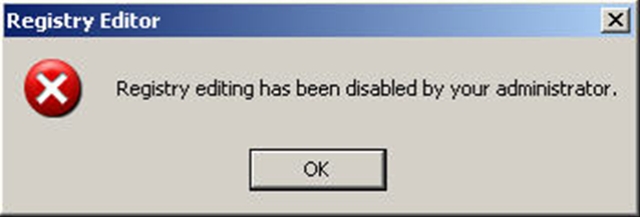
Registry Editing Has Been Disabled By Your Administrator
Posted on July 2, 2007 by maddy
Today a friend of mine asked that his registry editor had been disabled accidently and now how should he enable it back again. Here are two ways to enable the registry editing in Windows.
1- From Group Policy Editor
Go to Run –> gpedit.mscIn the left hand menu, go to User Config –> Administrative Templated –> System.Now In the right hand pane, select “Prevent access to registry editing tools”. It will probably be not configured or enabled. If it’s enabled, disable it and if it’s not configured, first enable it, apply settings and then disable it. Most probably the settings have been applied instantly. If not, then run gpupdate in command prompt to apply the group policies.
2- From the Run Menu
I got this tweak while surfing the internet. Go to Start –> Run, copy and paste the follow in the Run box and press OK.
REG add HKCU\Software\Microsoft\Windows\CurrentVersion\Policies\System /v DisableRegistryTools /t REG_DWORD /d 0 /f
The effects are usually instant. If not then you should see the results after restarting your computer.
Please tell us your experiences on this tweak.
YOU ARE BEING WATCHED
Showing posts with label working. Show all posts
Showing posts with label working. Show all posts
Tuesday, November 27, 2007



Show Hidden Files and Folders not working?
Show Hidden Files and Folders not working?
Posted on May 13, 2007 by maddy
A few days back, a client came to me and told me that he was having trouble with his Windows XP. The show hidden files and folders was not working at all. If he selected the radio button “Show hidden files and folders”, and then press Ok .. the changes would just disappear upon opening the dialog again. It was probably some virus attack after which the Windows registry was not being updated properly. So here is what I did to restore it back.
Go to registry editor by running regedit in the run box.Go to this key:HKEY_CURRENT_USER\Software\Microsoft\Windows\CurrentVersion\Explorer\AdvancedIn the right hand area, double click hidden and change the value to 1.
Now you’re all set to go. Check it in your tools menu if the changes have taken effect. Mine have already been fixed :-). Please spare a few moments from your precious time and tell us about your experiences
Posted on May 13, 2007 by maddy
A few days back, a client came to me and told me that he was having trouble with his Windows XP. The show hidden files and folders was not working at all. If he selected the radio button “Show hidden files and folders”, and then press Ok .. the changes would just disappear upon opening the dialog again. It was probably some virus attack after which the Windows registry was not being updated properly. So here is what I did to restore it back.
Go to registry editor by running regedit in the run box.Go to this key:HKEY_CURRENT_USER\Software\Microsoft\Windows\CurrentVersion\Explorer\AdvancedIn the right hand area, double click hidden and change the value to 1.
Now you’re all set to go. Check it in your tools menu if the changes have taken effect. Mine have already been fixed :-). Please spare a few moments from your precious time and tell us about your experiences
Subscribe to:
Posts (Atom)
